

A client asks for one more change. You open Muse Code, work through it and send the result. The task update and time entry can wait until later.
Except later is usually when the next piece of work arrives.
Connecting Muse Code to TaskTime Pro lets you handle those small admin steps while the project is still in front of you. The agent can check a task, manage its timer, find unbilled work and prepare an invoice draft using records from the app.
This guide is for Muse Code, Meta’s terminal coding agent. It uses Muse Code’s local MCP server support; it is not a setup guide for the consumer Muse assistant.
Add TaskTime Pro as a Muse Code MCP server
Muse Code’s extension documentation describes local stdio MCP servers. Its configuration guide places user settings in ~/.config/muse/settings.json.
With Muse Code installed and npx available, merge this block into your existing settings file. Preserve the other settings and any servers you already use:
{
    "mcp_servers": {
        "tasktime": {
            "transport": "stdio",
            "command": "npx",
            "args": ["-y", "@tasktimepro/agent-bridge", "--app-url", "https://app.tasktime.pro"]
        }
    }
}
Restart Muse Code so it can load the server. This uses TaskTime Pro’s standard bridge package; it does not require a separate Muse plugin. Let Muse Code own the process instead of launching another bridge in a terminal.
Next, pair the app:
- Open TaskTime Pro in a browser on the same computer.
- Ask Muse Code to call the TaskTime
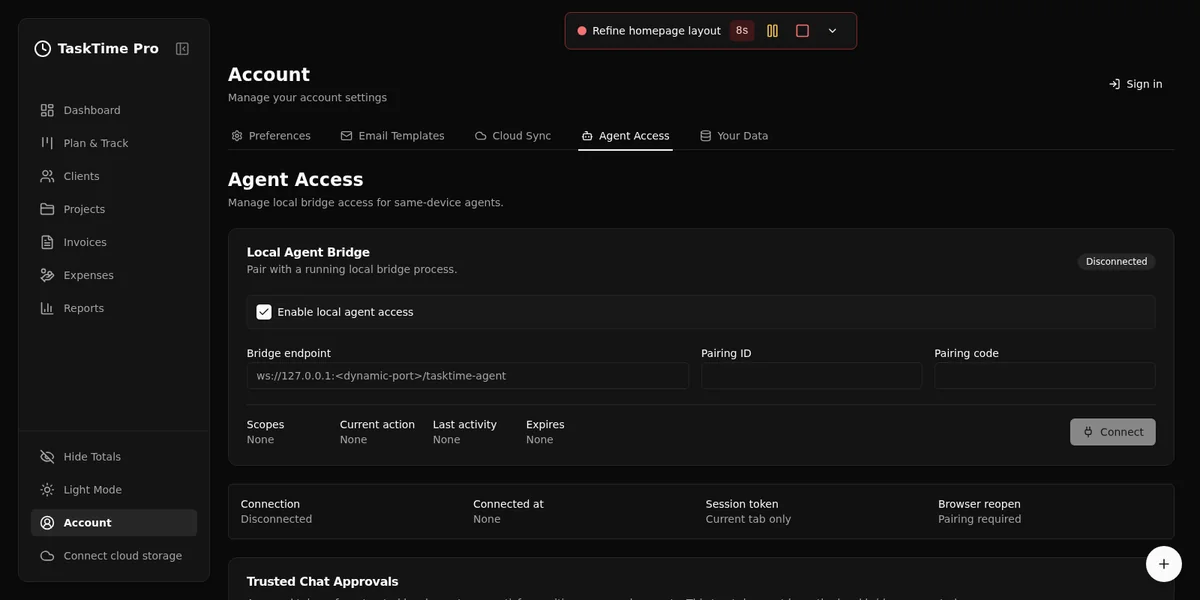
get_pairing_statustool and show the current pairing details. - Follow the launch URL, or enter the details in Account > Agent Access.
- Review the permissions and connect the browser app.
- Ask Muse Code to list your projects before trying a change.
MCP configuration and browser pairing are separate steps. A server starting successfully does not, by itself, give the agent access to your work records. The TaskTime Pro quickstart explains the pairing flow.
Give Muse Code a specific piece of admin
You do not need a large automation plan to make this useful.
For example, before continuing a client project:
Use TaskTime Pro to check the Product experience project.
List its unfinished tasks and any active timers.
Open the project so I can choose what to work on next.
Once you choose a task, ask Muse Code to start its timer. If you switch projects, ask it to show the active timers first so you can decide what to pause or stop.
You can also ask it to update a task description, add a follow-up task, attach work to the planner or record a project expense. Give it the details you would enter yourself, then ask it to open the result for a quick check.
That is the point of Muse Code task management here: fewer forgotten updates, with the records still visible in TaskTime Pro.
Find the work you have not billed
At the end of a project, the question is often less “write an invoice” and more “what should be on this invoice?”
TaskTime Pro already has the tasks, saved time entries and billable expenses. Muse Code can use that context to help you review the work before preparing a draft:
Review unbilled time and billable expenses for Product experience.
Preview an invoice and list the work it would include.
Flag anything you need me to clarify, such as the rate or client details.
Wait for my review before creating a draft.
Do not finalize, email or export anything.
After checking the preview, ask for the draft and open it in the browser. It is easier to catch a wrong rate or an expense attached to the wrong project while you can still see the source work.
TaskTime Pro checks permissions and approvals for billing, exports and email. Advanced reports and TaskTime-hosted invoice email require the Pro plan. Free still includes the basic current-month overview and invoice PDF export.
Keep the app in charge of the records
The local bridge forwards supported tool calls to the paired TaskTime Pro browser app. The app validates updates and handles invoice rules, downloads and email actions.
Muse Code should use those tools rather than editing browser storage, Yjs documents or sync files directly. If a tool needs a permission you have not granted, review the request in Account > Agent Access rather than asking the agent to work around it.
Local storage and model privacy are separate questions. When Muse Code uses a hosted model, tool results can share task notes, client details or amounts with that provider. Ask for the records you need for the current job, and review your provider’s data settings.
You can revoke the bridge’s access from the app. See the agent security guide for the scope and approval model.
Quick answers
Can Muse Code use TaskTime Pro without a dedicated plugin? Its documented stdio MCP support provides the connection path for TaskTime Pro’s standard bridge. The running browser app still needs to be paired before project and timer tools can access records.
Can Muse Code track freelance time? The paired bridge exposes tools to inspect, start, pause, resume and stop timers. Tell it which task you are working on and check the saved entry when you finish.
Can it prepare invoices from tracked work? It can review unbilled work, preview invoice contents and create drafts with the required permissions. Finalizing and sending remain separate actions for review and approval.
Start with the admin you tend to put off: checking the timer, updating the task or reviewing unbilled work. If Muse Code helps you keep those records current, preparing the next invoice becomes a much smaller job.