

You finish a client fix in Gemini CLI, close the terminal and move on. Later, when it is time to invoice, you have to remember which task it belonged to and how long you spent on it.
That is a small gap, but it adds up.
TaskTime Pro gives Gemini CLI a way to work with your actual projects, tasks, timers and invoices through a local MCP bridge. You can check the task and start its timer before working, then review the recorded time before preparing a bill.
This guide uses Gemini CLI, the terminal agent. The setup below is for its local MCP configuration, rather than a conversation in the Gemini website.
Connect Gemini CLI to TaskTime Pro
Gemini CLI supports local MCP servers launched as child processes. TaskTime Pro provides that server through @tasktimepro/agent-bridge. Google’s MCP configuration guide explains the client settings.
With Gemini CLI installed and npx available, merge this entry into ~/.gemini/settings.json. Keep your other settings and any existing servers:
{
    "mcpServers": {
        "tasktime": {
            "command": "npx",
            "args": ["-y", "@tasktimepro/agent-bridge", "--app-url", "https://app.tasktime.pro"]
        }
    }
}
Restart Gemini CLI and use /mcp list to check the server. Gemini’s workspace trust settings can affect whether a local server starts; review any trust request for the folder you are using.
Let Gemini CLI manage this bridge process. Starting another copy in a separate terminal gives you a different bridge to pair with.
Then connect the browser app:
- Open TaskTime Pro on the same computer.
- Ask Gemini to call the TaskTime
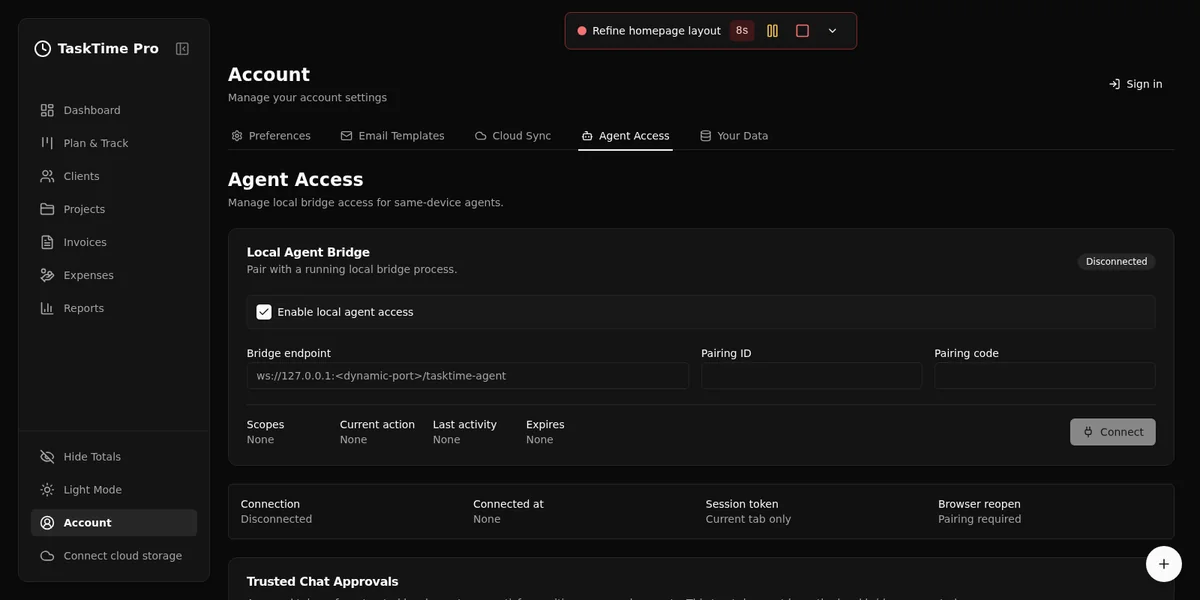
get_pairing_statustool and show the current pairing details. - Open the returned launch URL, or enter those details in Account > Agent Access.
- Review the permissions and connect the app to the bridge.
- Ask Gemini to list your projects to check the connection.
The browser tab must be running and paired before work records are available. The agent quickstart covers pairing and reconnecting in more detail.
Start with the task you are about to work on
A useful first request is something you can check quickly:
Use TaskTime Pro to find the Website redesign project and its open tasks.
Show me any active timers before changing anything.
Once you have picked the task:
Start a timer for Refine homepage layout in Website redesign.
Open that project in TaskTime Pro so I can check it.
When you finish, ask Gemini to stop the timer and show the saved time entry. You still choose when work starts and ends; the agent handles the clicks and keeps the entry attached to the right task.
The same connection supports task updates, planner items, project notes and expenses. For example, you can ask Gemini to record a billable client expense with its amount, date and project, then open it for review.
Turn tracked work into an invoice draft
The useful part of Gemini invoicing is having the work records available when you need them. There is less room for guessing what happened last week.
Try this when a project is ready to bill:
Find the unbilled time and billable expenses for Website redesign.
Preview what would go into an invoice and explain the total.
Wait for me to review it before creating a draft.
Do not finalize, send or export anything.
After reviewing the preview, you can ask Gemini to create the draft and open it in TaskTime Pro. Check the client, dates, rates and included work there before taking the next billing step.
Billing, export and email permissions are separate from ordinary task access. The app checks the granted scopes and approvals for sensitive actions. TaskTime-hosted invoice email and advanced reports require the Pro plan; basic current-month summaries and invoice PDF export remain available on Free.
What stays local, and what the model can see
The bridge runs on your computer and asks the paired browser app to read or update records. It does not give Gemini direct access to IndexedDB, Yjs documents or your cloud sync files.
When you use a hosted model, the information returned by a tool can still become part of the model’s context. A project name, invoice amount or task note returned to Gemini is information you have chosen to share with that agent. Keep requests limited to the client work you actually need it to inspect.
You can review and revoke access in Account > Agent Access. The security guide explains permissions and browser approvals.
Quick answers
Can Gemini CLI manage tasks and track time? After the local bridge is paired, it can use TaskTime Pro’s supported task and timer tools with the permissions you grant.
Is there a separate TaskTime Pro Gemini plugin? This setup uses the standalone MCP bridge. You configure it in Gemini CLI rather than installing a TaskTime-specific Gemini plugin.
Can it invoice my client without review? Ask it to collect unbilled work and prepare a preview first. Creating a draft, finalizing an invoice and sending it are separate steps, subject to the app’s permissions and approval rules.
If you already use Gemini CLI for client work, start with one project and one timer. Once that feels useful, invoice preparation is a natural next step: the work is already recorded, and you can see exactly what you are about to bill.